There are two ways to create Departments and Job titles in MaxLearn. You can either include them in your Learner Upload or upload them in an Excel file separately. this procedure will show you how to upload your company's departments and job titles through an Excel upload.
1. Go to Manage Learner from the left navigation and click on Department Upload.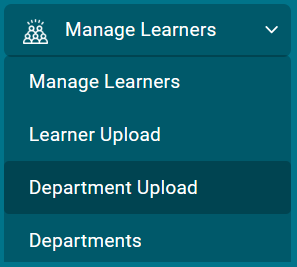
2. Click on the Department Excel Download button.

4. Enter departments and job titles per your company's organizational structure.
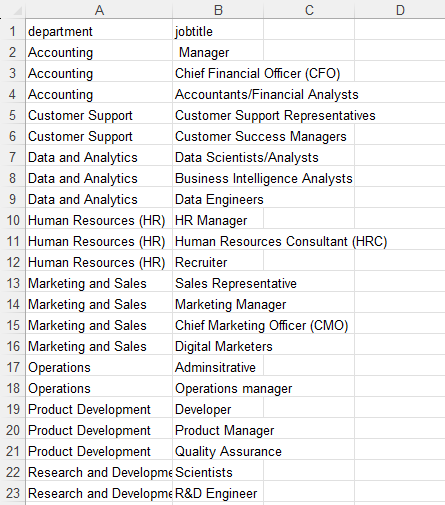
5. Save and close your updated Excel file.
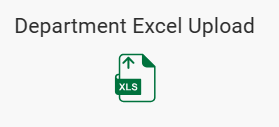
6. Click on the Department Excel Upload button, navgiate to you file and upload.
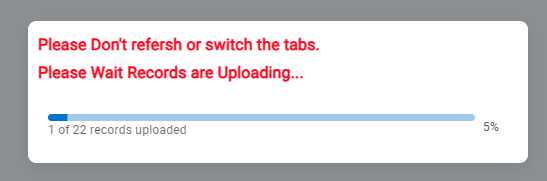
The follow status bar will display.
7. Under Manage Learners, on the left navigation, click Departments.
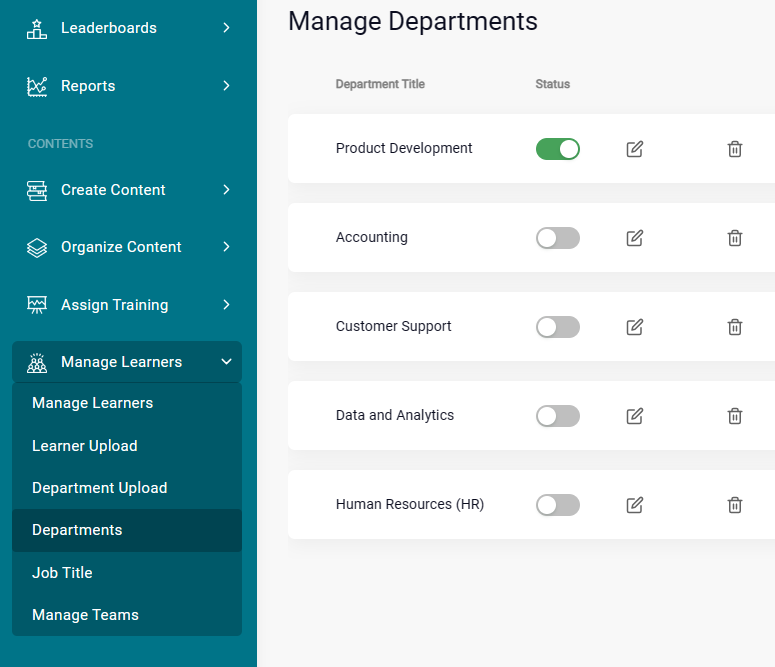
8. Check that all Department names are correct. You can edit an individual department name using the edit button. Or delete the name as needed. 
9. Once you have confirmed all the department names are correct, move the Status toggle to green.
10. Under Manage Learners, on the left navigation, click Job Title.
11. Check that all job titles are correct. You can edit an individual job titles using the edit button. Or delete the name as needed.
12. Once you have confirmed all the job titles are correct, move the Status toggle to green.
Was this article helpful?
That’s Great!
Thank you for your feedback
Sorry! We couldn't be helpful
Thank you for your feedback
Feedback sent
We appreciate your effort and will try to fix the article