Welcome to MaxLearn!
We're glad you're here and are ready to help you make your training fast, fun, and effective.
TABLE OF CONTENTS
What is MaxLearn?
MaxLearn is both a learning technology platform and an instructional design system.
MaxLearn utilizes cognitive science principles to improve the return on investment of learning. MaxLearn uses spaced repetition of key learning content and adapts to the Learner's performance to deliver the most appropriate content at the appropriate level to each Learner.
Getting Started
To get started, you will:
1. Create or Upload content - Content includes system-generated questions and flashcards, as well as, user uploaded videos, SCORM files (courses), PDFs, and PowerPoints.
2. Manage Learners - Add, upload, and group learners into Teams.
3. Assign training - Associate content with learners or teams through Challenges, Learning Paths, Certifications and Goals.
We'll guide you through each stage of this process. To help you get started, MaxLearn comes pre-loaded with some Compliance and DEI content. You can use this content as is, modify it to suit your company's needs, or simply use it to learn the system.
Welcome Email
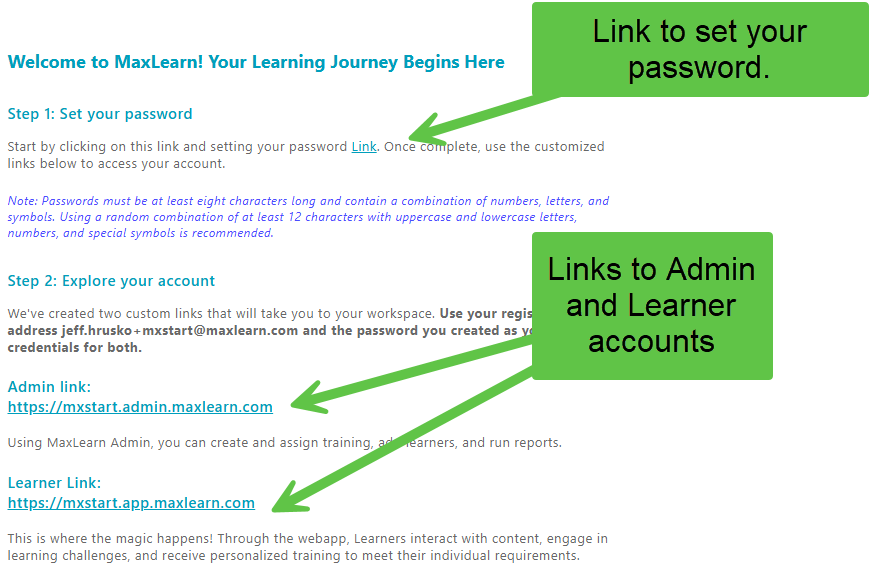
You will receive a welcome email, which includes a link to set your password, as well as a link to your administrator account and learner accounts.
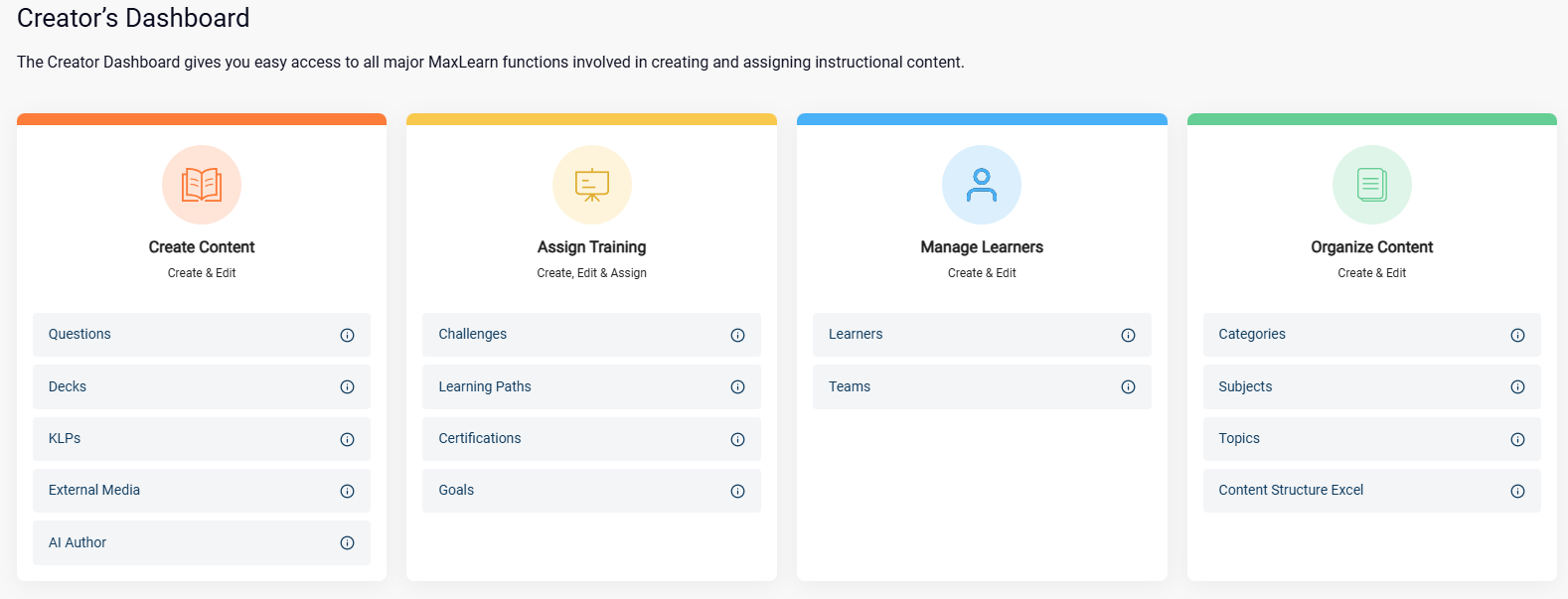
Creator's Dashboard
Log into your MaxLearn Administrator account. The first window you will see is the Creator's Dashboard. Here you can access all of the major MaxLearn administrator functions.
There are four major elements to MaxLearn:
- Create Content,
- Assign Training,
- Manage Learners
- Organize Content
Note: You can also access these functions from the left navigation menu. 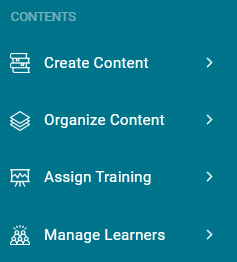
Organize Content
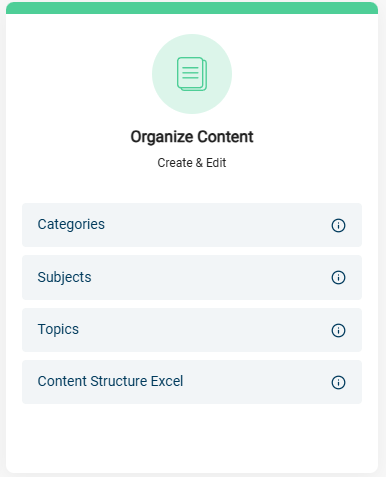 The content in MaxLearn is organized by category, subject, and topic. The topic is the level at which learning progress is tracked. While you can modify or add to your content structure, it's advisable to have some idea of how you want to organize content in the system.
Notice that several categories, subjects, and topics are already prebuilt into the system. You can also delete, change, or add to these to meet your needs.
Category is a board title for a group of subjects.
Categories can reflect your company's organization or function, such as:
Accounting
Marketing
Sales
IT
Human Resources
Compliance
Quality Control
Or they can reflect major areas or domains of learning, such as:
Leadership
Business acumen
Compliance
Information security
Software
Professional Certifications
A subject is a title for a group of topics. Subjects are assigned to a category to organize your files in more detail. For instance, a Category on Compliance may have a Subject on Financial Crimes.
The subjects discussed are unique and connected to a specific topic. A topic focuses on a single concept, closely related concepts, activities, roles, policies, or specific items such as a product or product type.
Progress in learning is monitored at the topic level. For each topic, a learner can have a status of Not Started, In Progress, Graduated, or Prol at each level of learning.
Explore the content structure of your system and make changes as needed.
Create Content
Let's start by exploring the content that's preloaded into your account.
You can access:
- Questions are the primary form in which content is delivered. MaxLearn supports four question types: Single-choice, multiple-choice, True/False, and Put-in-order.
- Flashcards are small information bites that contain text and images. They are created in MaxLearn, grouped into Decks, and associated with Topics.
- KLPs are Key Learning Points (KLPS). They explicitly state the attitudes, knowledge, skills, and/or behavior the learner must exhibit and are associated with questions.
- External Media. MaxLearn allows for the uploading and associating of external media files like SCORM courses, PowerPoints, and videos with a topic.
- AI Generation creates drafts of Key Learning Points, Questions, and Flashcards based on the selected topic
Key Learning Points (KLP)
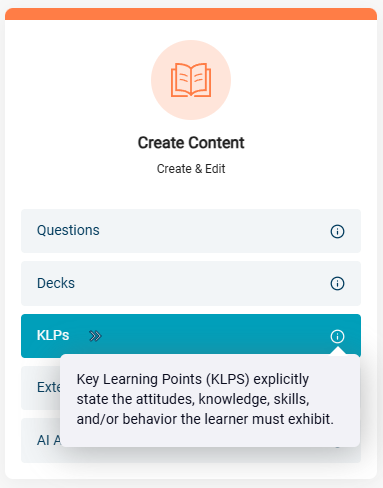 Key learning points (KLPs) are the building blocks of learning in the MaxLearn system. They explicitly state the attitudes, knowledge, skills, and/or behavior the learner must exhibit. Questions are organized by topic and are tagged to KLPs.
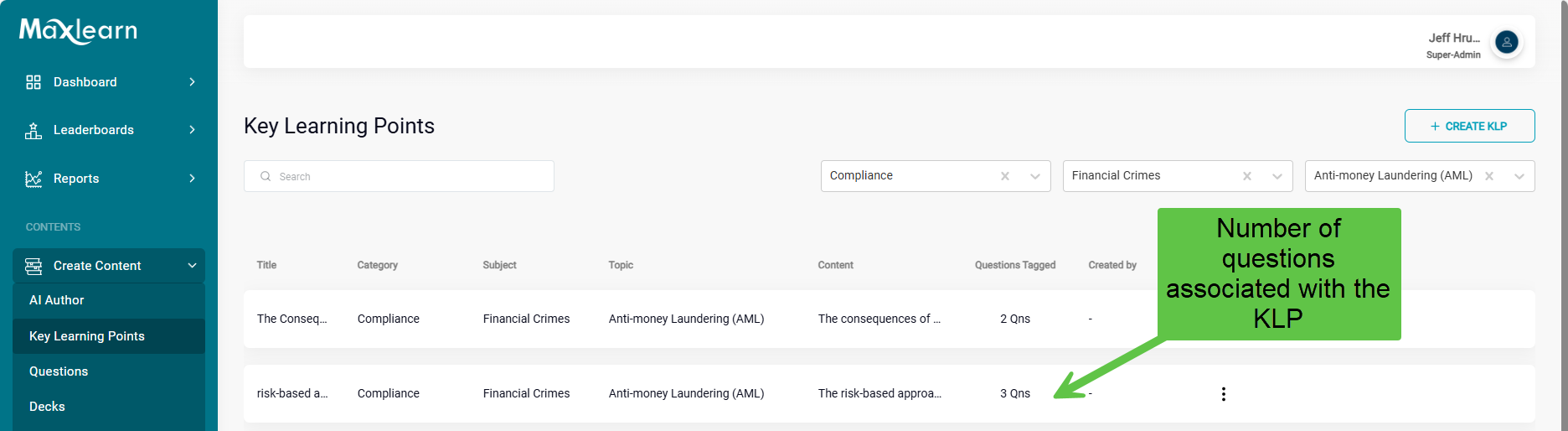
In this view, you can see how many questions are associated with a particular KLP.
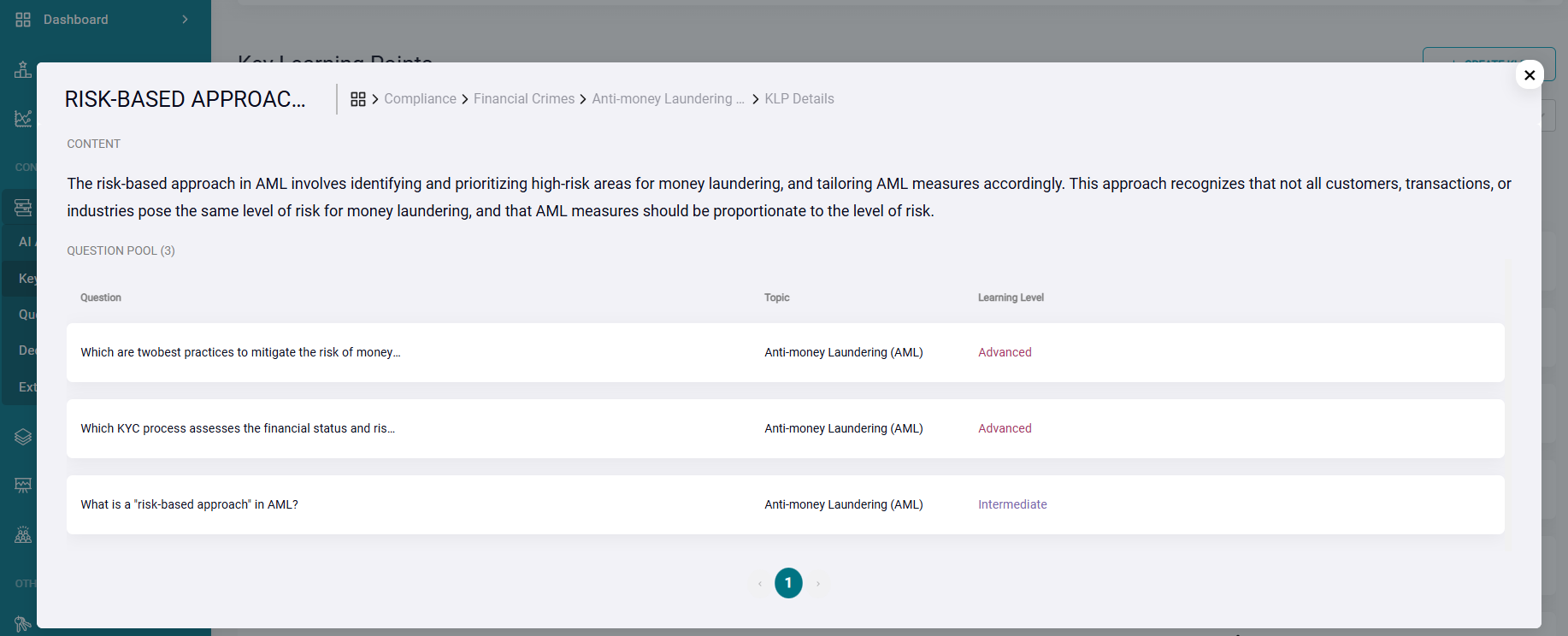
You can click to preview the associated questions.
Create KLP
 It's a best practice to build KLPs before creating questions, as your questions will be more focused.
To create KLPs:
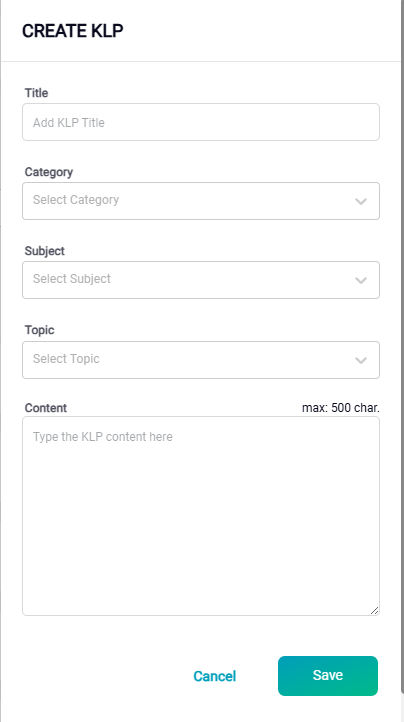
1. Click on the +CREATE KLP button on the top right of the Key Learning Points screen.
The CREATE KLP dialog box appears.
2. Enter the Title in the field provided. For example "Identifying Red Flags for Money Laundering."
3. Select the Category, Subject, and Topic your KLP will be associated with using the drop-down menus provided—for example, Compliance, Financial Crimes, Anti-money laundering.
4. Enter the text of your Key Learning Point. For example:
A key learning point for identifying a red flag for money laundering is inconsistency between a customer's activity and their profile. This can involve:
- Large cash transactions for a business that wouldn't normally deal in cash.
- Frequent deposits or withdrawals just below reporting thresholds.
- Unexplained source of funds.
- Transactions to high-risk countries.
If something seems off about a customer's financial activity compared to their background or business, it's worth investigating further.
5. Click Save.
Explore Questions
- Select Questions under the Create Content option group on the left navigation menu.
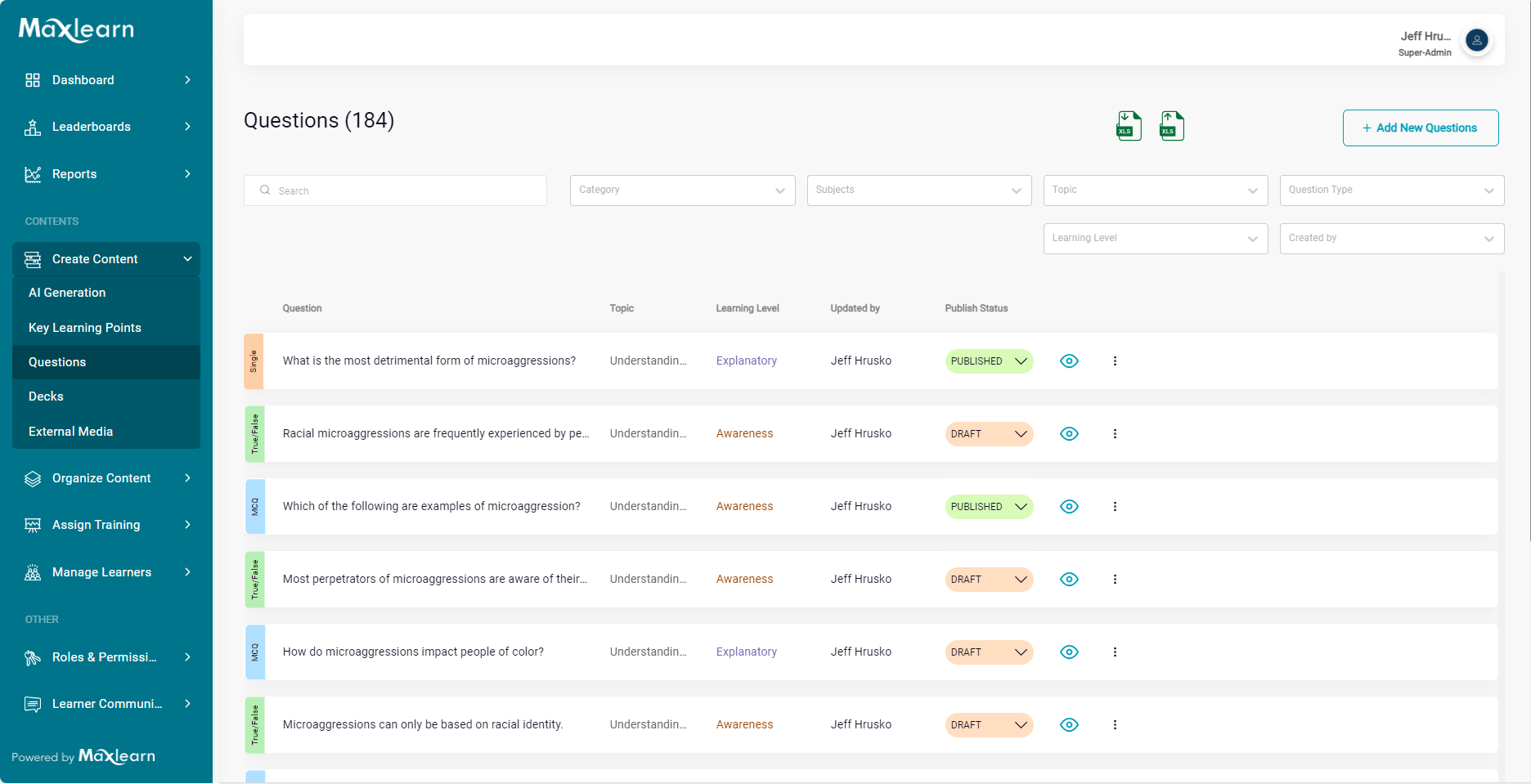
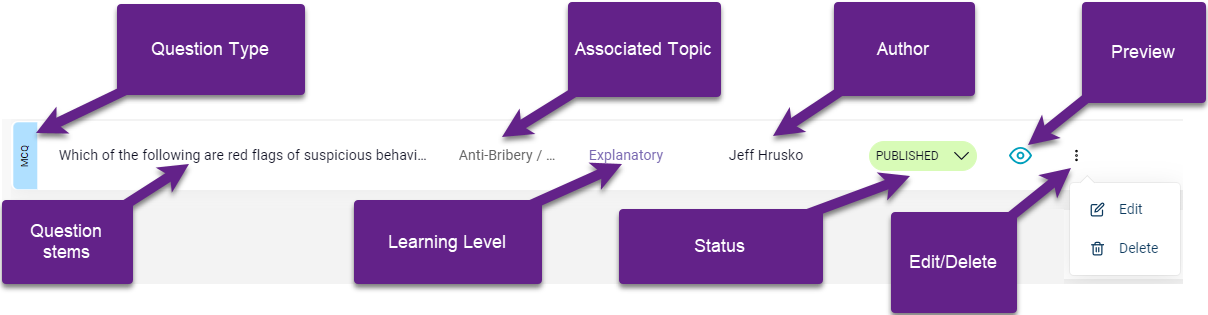
- This is the Question List screen, which displays all of the questions provided with your account. Notice the colored tab at the left end of each listing. This lists the question type. There are four types of questions in MaxLearn Single Choice, Multiple Choice, True/False, and Put-in-order.
- See the image below for the types of information displayed in the question listing.
- Click on the
 icon next to one of the questions. A preview of the question is displayed.
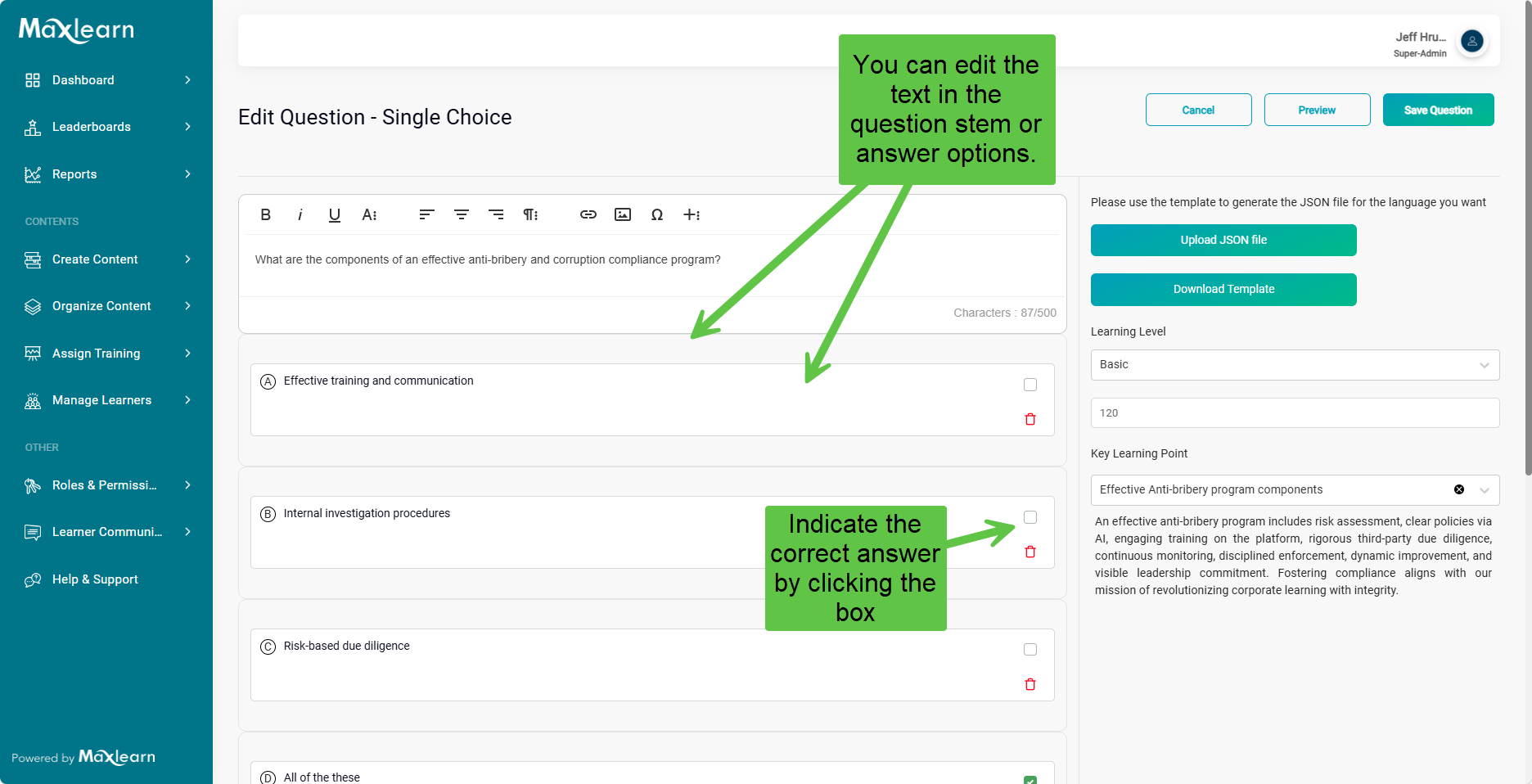
 - Click on the overflow menu and select edit.
Creating Questions in MaxLearn
To manually create a question in Maxlearn:
1. Click on the +ADD NEW QUESTIONS button on the top right of the screen.
A drop-down list appears.
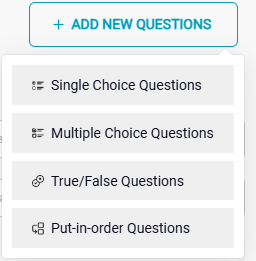
2. Select the type of question you want to create.
3. Type your question's stem in the field provided.

4. Enter your answer choices.
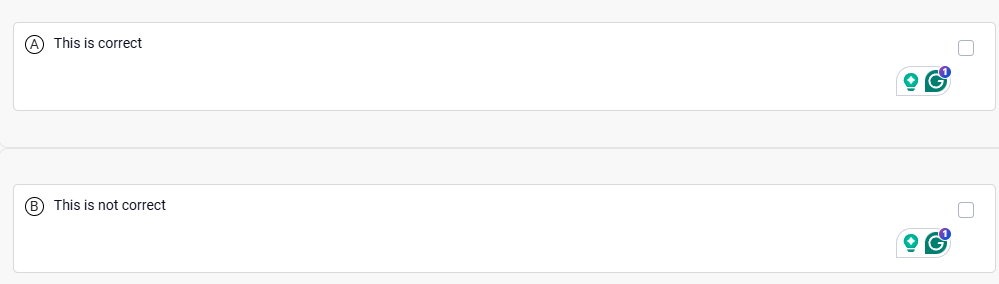
5. If more options are needed, click on the Add New Option button. 
6. Enter the answer explanation in the Feedback field.
7. Select the Category, Subject and Topic using the drop-down menus provided.
8. Click Add.
9. Select the Learning Level for the question. The levels are: basic, intermediate, and advanced.
10. A default time to solve in seconds is automatically given based on the learning level. This can be adjusted.
11. Select the Key Learning Point to which you want to associate the question.
12. Click Save Question.
13. Determined whether you want to save the question as a draft, or publish it. Published questions may be visible to learners.
Manage Learners
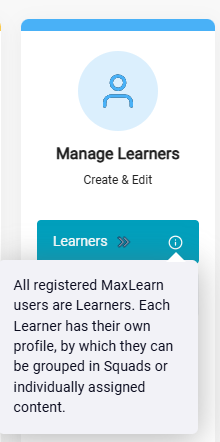 The individuals receiving training are known as your learners and can include your employees or anyone else you wish to train. Each learner has a profile that contains important details such as their email, phone number, date of hire, department, and other attributes that can be used to group learners or assign training.
Teams - MaxLearn allows you to create groups of learners called teams. Teams can be created based on Rule Sets using any of the attributes in learner profiles.
Add Learners Manually
Learners can be added manually or through a bulk upload.
To Add Manually:
1. Click on the Learner button from Manage Learner card on the Creator's Dashboard.
2. Click on the + ADD NEW LEARNER button on the top right of the screen.
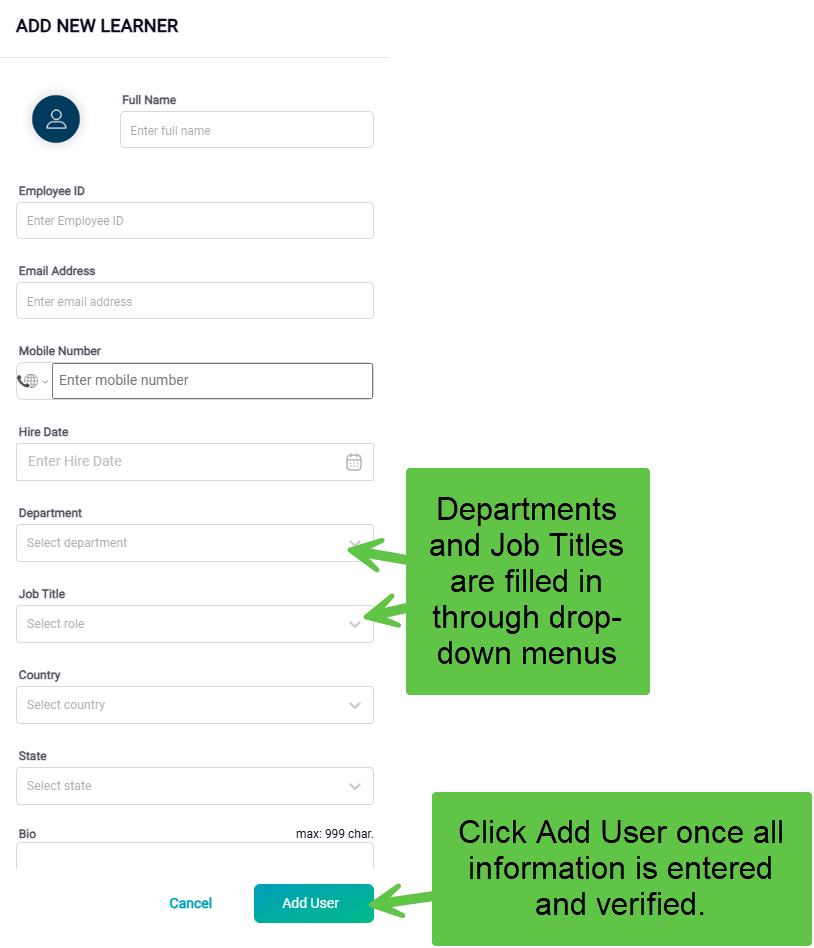
The ADD NEW LEARNER dialog box appears.
3. Fill in the learners' information in the appropriate fields.
4. The Department and Job title are filled in through dropdowns went list all of the departments and job title you have uploaded.
To Bulk Upload
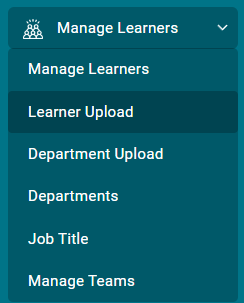
1. Click on Learner Upload under the Manage Learners navigation pane.
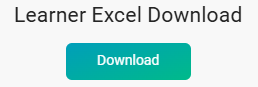
2. Click on the Download button under Learner Excel Download.
3. Format your employee to data to match the excel template.

4. Verify the data, save and close the Excel file.
5. Click on the Learner Excel Upload button.
Your Learners will be uploaded.
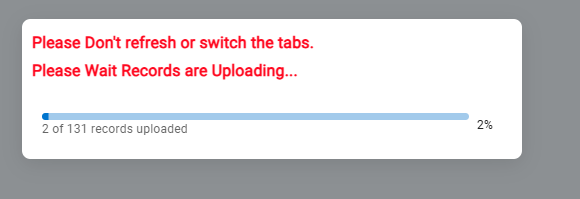
6. You can then check and update the learns as needed.
Delivery Methods
Here is a breakdown of MaxLearn delivery methods and their attributes.
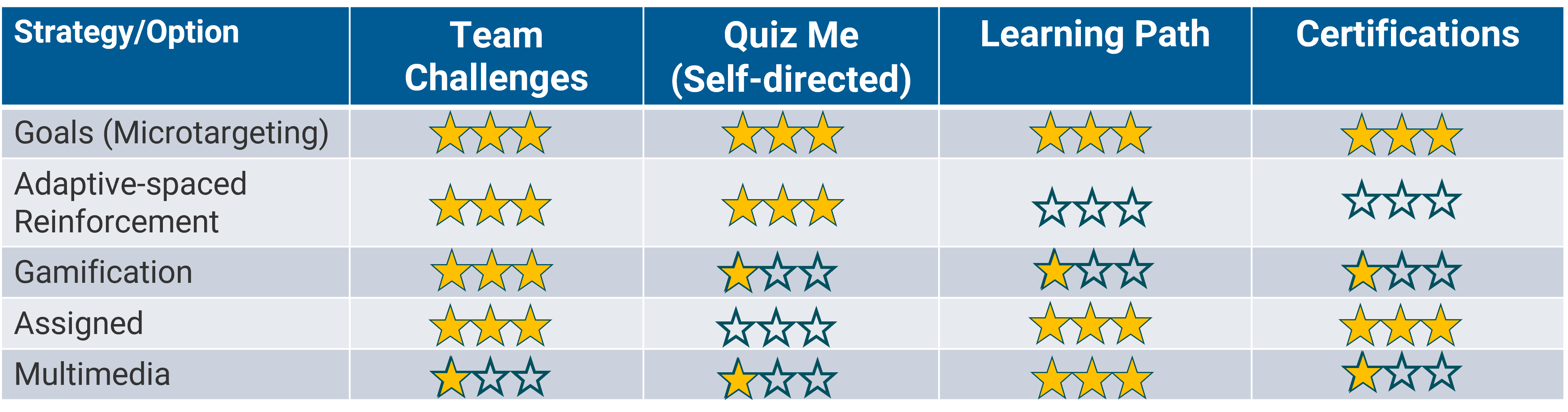
| Delivery Method | Description | Delivery Type | Attributes and Settings |
|---|---|---|---|
| Challenges | Challenges allow learners to earn points by answering questions. Learners can be grouped into squads and can play against other teams in the company. Because Challenges always give Learners content at their learning level, the competition focuses on the process of learning, not a comparison of knowledge. Challenges are limited to a few questions per session and uses spaced repetition and an adaptive algorithm to spur learning growth. | Assigned to either individuals or teams. | Topics to be included in the Challenge. Number of questions per Challenge session. Number of Sessions per day. Choose whether a question explanation is given. Choose if the questions have a time limit. |
| Learning Paths | A learning path is a series of learning materials such as flashcards, questions, eLearning courses, and videos that a learner progresses through sequentially to develop proficiency in a specific subject or topic. Learning paths are a useful instructional method to introduce a subject or topic. They are similar to traditional eLearning courses, as they present content in a fixed order. Learning paths can be used to deliver existing training programs or create new ones using the flashcards and questions created within MaxLearn. | Assigned to either individuals or teams. Self-directed | Select specific flashcards, questions, uploaded externally generated media, such as PDF documents, PowerPoints, videos, and eLearning courses. Arrange the learning objects in the order you want the learner to encounter them. Either assign the Learning Path or select who can view the learning path.. |
| Certifications | Certifications are tests that have various options that allow them to be used as:
Certifications are a set of questions that can be arranged in a specific order or randomized. The questions can also be assigned a time limit or left open-ended. Certifications are assigned to individual learners based on their profile attributes or Team affiliation. They require learners to achieve a specific passing percentage by answering a group of questions. Certifications are designed to assess a learner's knowledge, skills, and abilities in a particular subject area. Learners can select specific questions, arrange them in a specific order, and must achieve a passing score. | Assigned to either individuals or teams. | Select the question you want to include. Set the order in which you want the questions to appear. Choose whether a question explanation is given. Choose if the questions have a time limit. |
| Quiz Me | Quiz Me is a self-directed feature that enables learners to enhance their knowledge of various topics by answering questions delivered through space repetition and an adaptive algorithm. | Self Directed | Question limit per session. Number of sessions per day. |
Was this article helpful?
That’s Great!
Thank you for your feedback
Sorry! We couldn't be helpful
Thank you for your feedback
Feedback sent
We appreciate your effort and will try to fix the article