TABLE OF CONTENTS
All MaxLearn users have the learner role. Each learner has a profile that contains important details such as their email, phone number, date of hire, department, and other attributes that can be used to group learners or assign training.
You can add learners in bulk, using the Learner Excel Upload function, or individually.

When creating your MaxLearn account, it's important to note that if you plan on adding learners manually, the system will not allow you to create a new Department or Job title at the same time. To avoid this issue, consider uploading learners in bulk or uploading your Department name and Job title first before adding learners individually. This will ensure a smoother and more efficient setup process.
Uploading Learners in Bulk
1. Go to Manage Learners on the left navigation, and select Learner Upload. 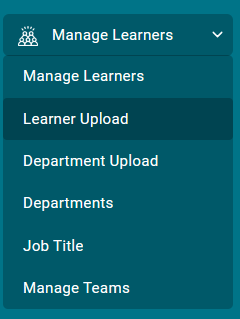
2. Click on the Learner Excel Download button.
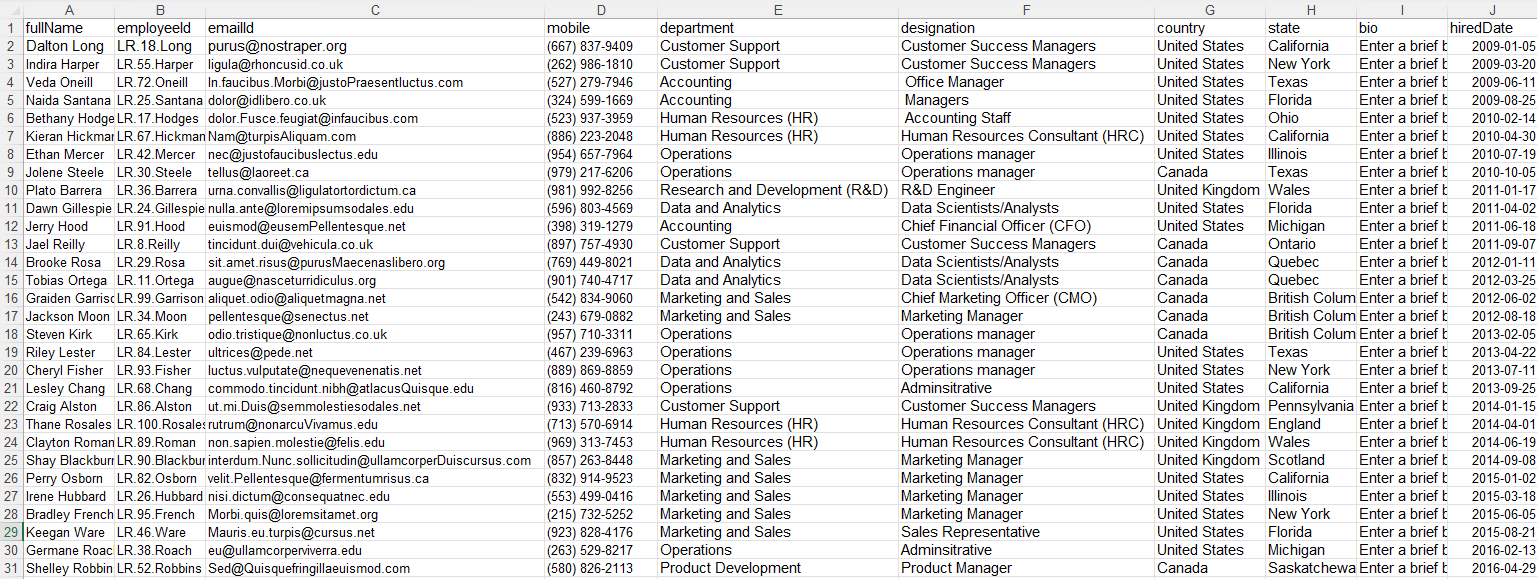
3. Enter your employee information to match the data format of the Excel file, for example:
4. Click on the Learner Excel Upload button, navigate to your Excel file, and upload.
Adding Learners Individually
1. Under Manage Learners, select Learners.
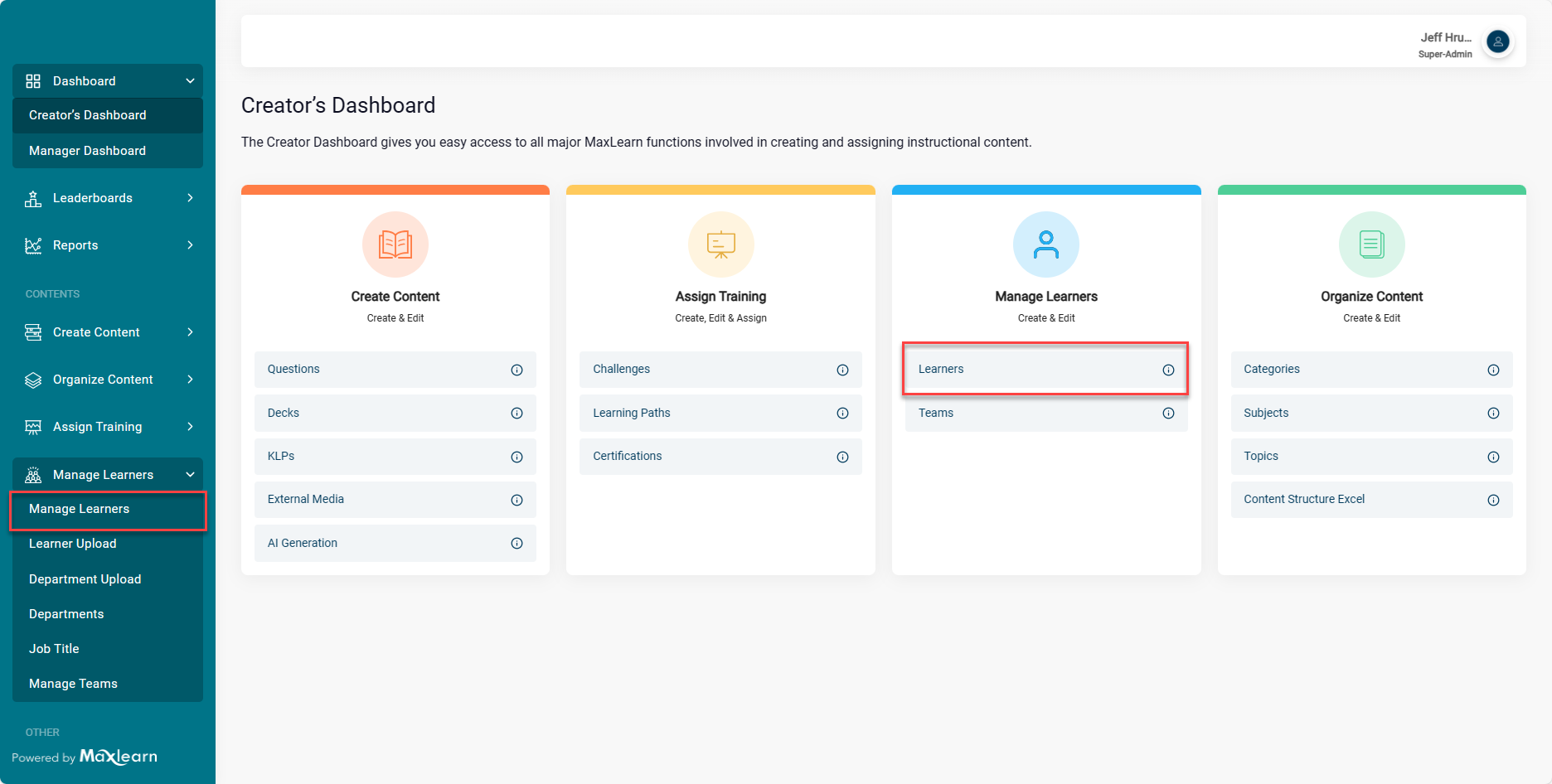
2. Click + Add New Learner.

The Add New Learner popup appears.
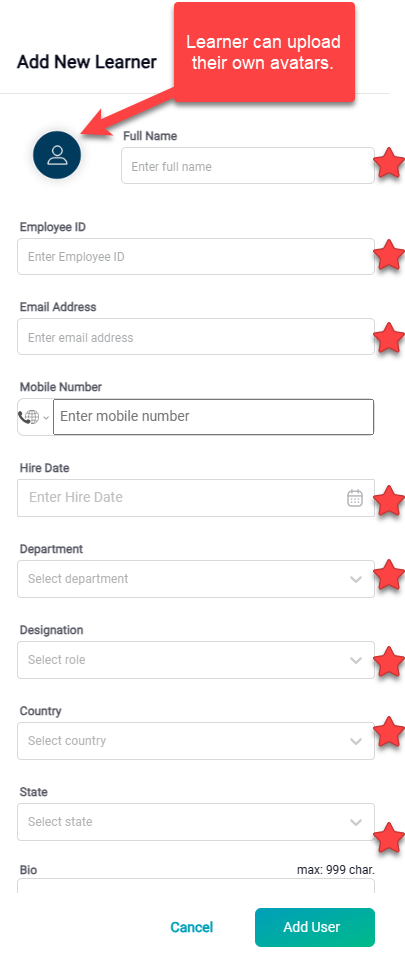
3. Complete the new learner profile, the following fields are required:
- Full Name
- Employee ID
- Email Address
- Hire Date
- Department
- Job Title
- Country

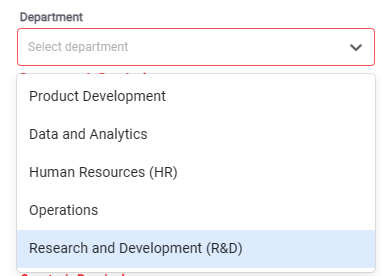
Use the drop-down menu to enter the department and job titles. Department and job title are entered previously in the system. To find out how, see Upload Your Departments and Job Titles.
4. Once you have entered all learner information, click Add User.
5. Return to the Manage Learner screen, and switch the toggle to active.
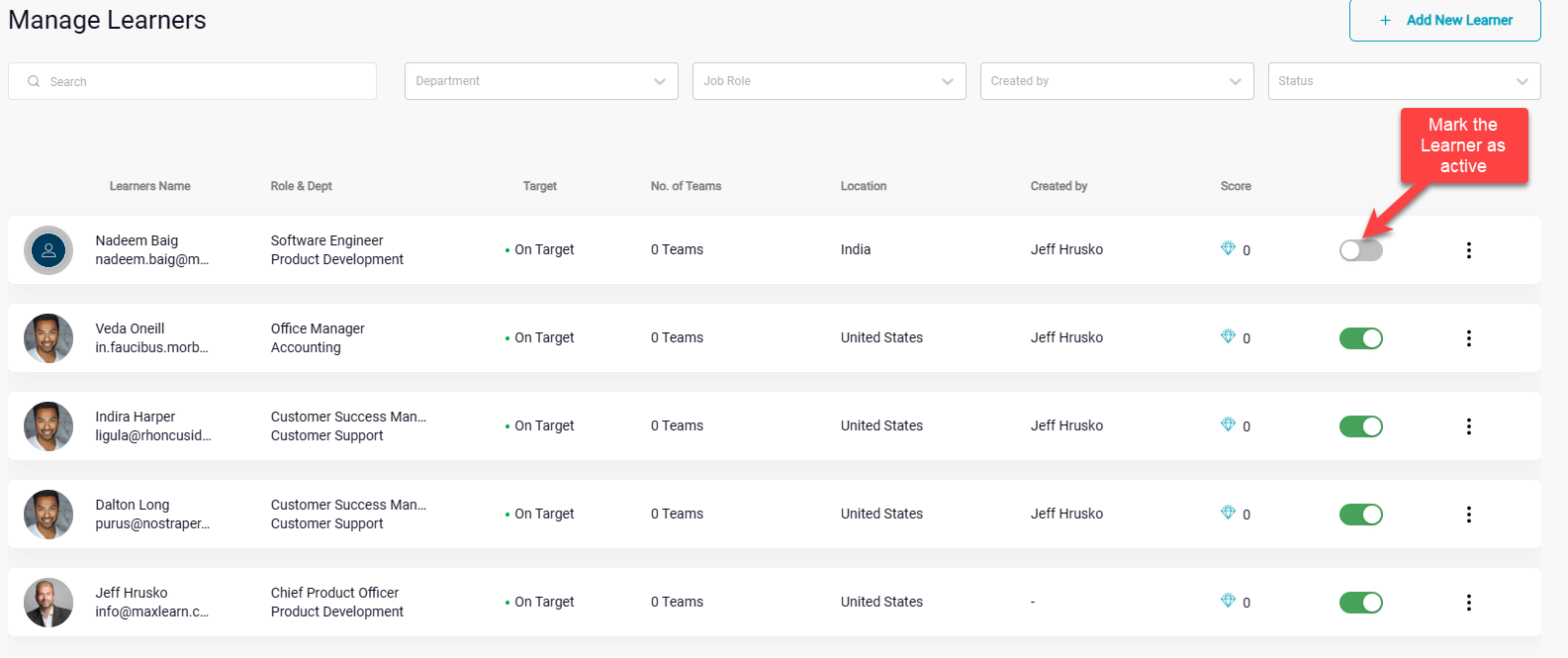
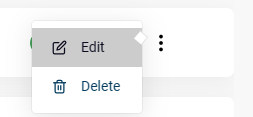
6. Learner's profile can be edited or delete using the three-dot menu.
Was this article helpful?
That’s Great!
Thank you for your feedback
Sorry! We couldn't be helpful
Thank you for your feedback
Feedback sent
We appreciate your effort and will try to fix the article