TABLE OF CONTENTS
- Adding, Editing and Deleting Categories
- Adding, Editing and Deleting Subjects
- Adding, Editing and Deleting Topic
MaxLearn content is organized by Categories, Subjects, and Topics.
Category
↪Subject
↪Topic
This article will instruct you on how to Add, Edit, or Deleting Categories, Subjects, and Topics.
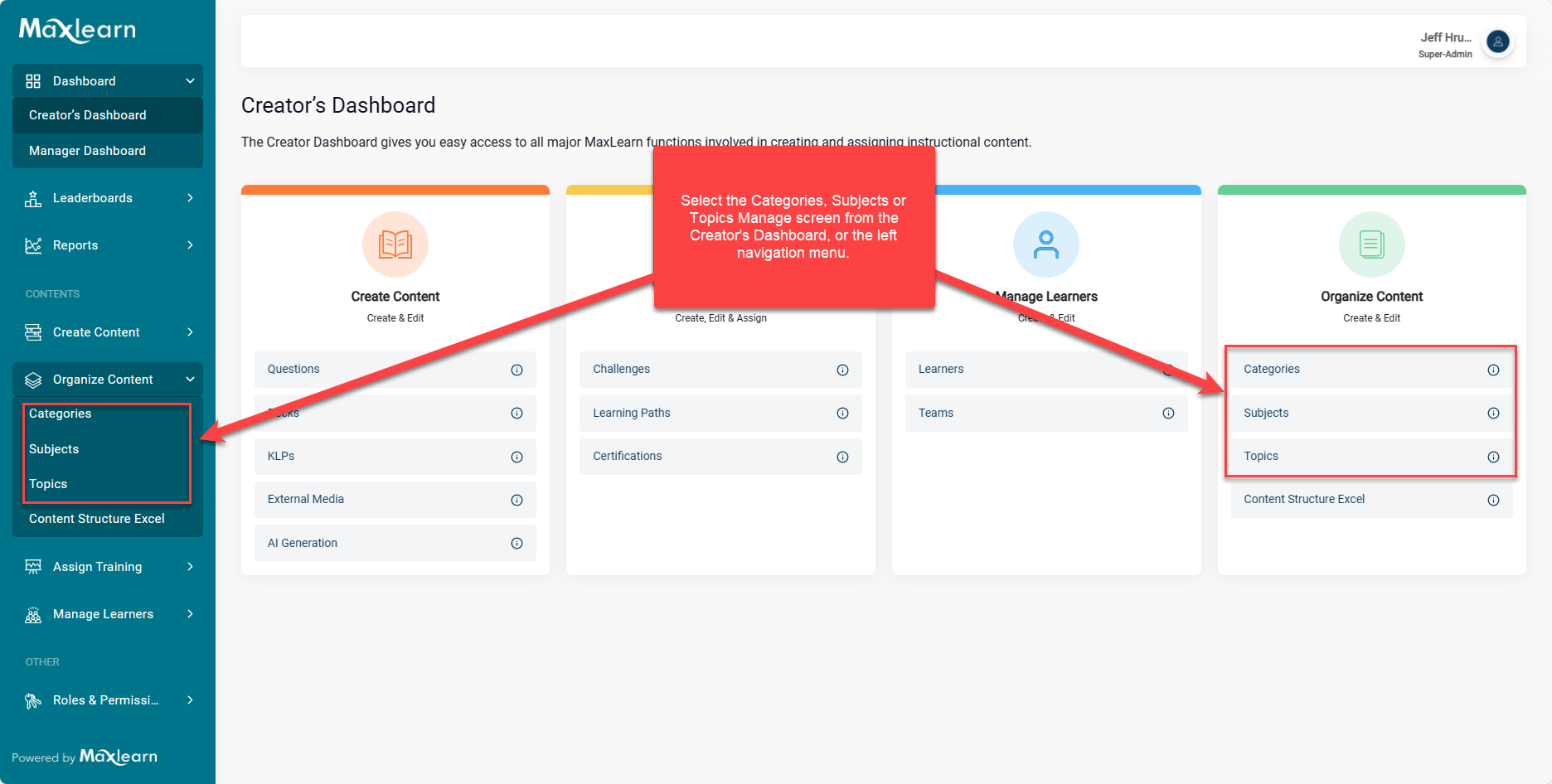
Categories, Subjects, and Topics each have their own landing page from which they can be edited. You can access these landing pages from the Creator's Dashboard or the left navigation menu under Organize Content.
Adding, Editing and Deleting Categories
Categories are the highest level of content organization and are usually tied to a company function, such as Human Resources, Accounting or Sales, etc.
To add a Category
1. Go to Organize Content on the left navigation or the Creator's Dashboard, and select Categories.
2. Click on the +Add New Category button on the top right of the Manage Category screen.

The ADD NEW CATEGORY popup appears.
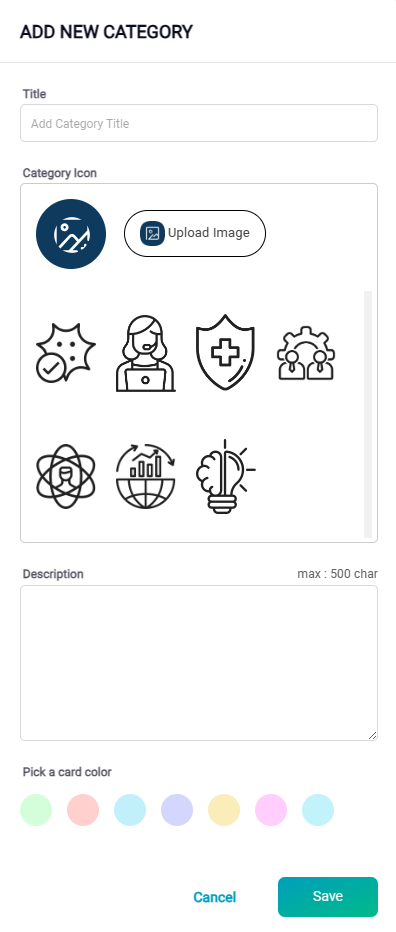
3. Enter the name of the category that you wish to create, for example, "Operations."
4. Select an icon to represent the category. You can either choose from the default icons or upload your own.
The icon will appear to the learners on their web or mobile accounts.
5. Add a description. For example, if the category title is Operations, a description might be:
Operations training focuses on the day-to-day management and improvement of the company's core functions and includes subjects such as quality control, process improvement, risk management, and costs.
6. Select a card color.
Choose a color for your card to make it easier for learners to find and identify categories when they search for training. Each category will be displayed as a card of a different color, with an icon to further distinguish them. This way, learners can quickly and easily navigate through the available categories.
7. Click Save.
After saving the category, it will appear in your Category list as a draft. To make the category available to learners, change its status to Published. Once published, you can add content to the category, and learners will be able to access it.
8. Click on the Published setting for the category and select Published.

Editing a Category
1. Select the Category listing you wish to edit, and select the three-dot menu.

2. Select Edit. 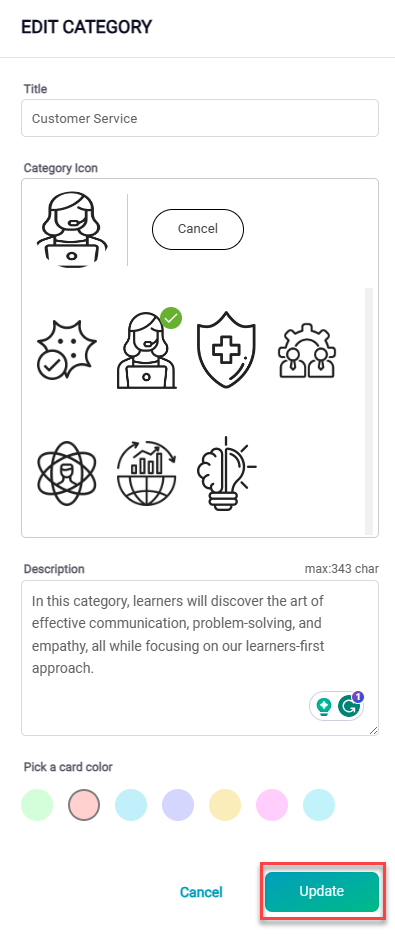
The EDIT CATEGORY popup appears.
3. Make your desired edits, and click the Update button.
4. Set the category status as PUBLISHED.
Deleting a Category
1. Select the Category listing you wish to edit, and select the three-dot menu.
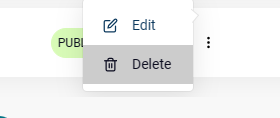

You must delete all content, subjects, and topics listed under the category before you can delete the listing.
Adding, Editing and Deleting Subjects
MaxLearn categorizes content into Categories, Subjects, and Topics. Subjects are assigned to relevant Categories to provide further organization. For instance, a Category on Compliance may have a Subject on Financial Crimes.
To Add a Subject
1. Go to Organize Content on the left navigation or the Creator's Dashboard, and select Subjects.
2. Click on the +Add New Subject button on the top right of the Manage Manage screen.

The ADD NEW CATEGORY popup appears.
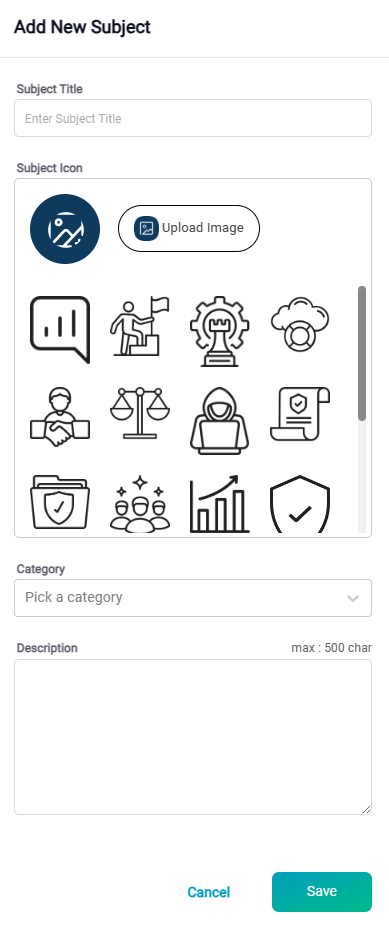
3. Enter Subject Title, for example, Financial Crimes.
4. Select a Subject Icon, or upload your own.
5. Select the Category under which the Subject is to appear, for example, Compliance.
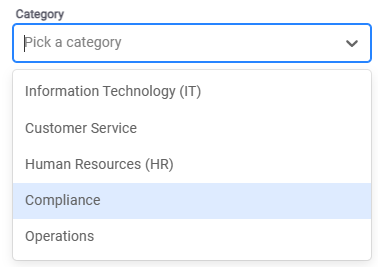
6. Enter a short description of your Subject.
7. Click Save.
After saving the subject, it will appear in your subject list as a draft. To make the category available to learners, change its status to Published. Once published, you can add content to the subject, and learners will be able to access it.
8. Click on the Published setting for the category and select Published.
Editing a Subject
1. Select the Subject listing you wish to edit, and select the three-dot menu.

2. Select Edit. 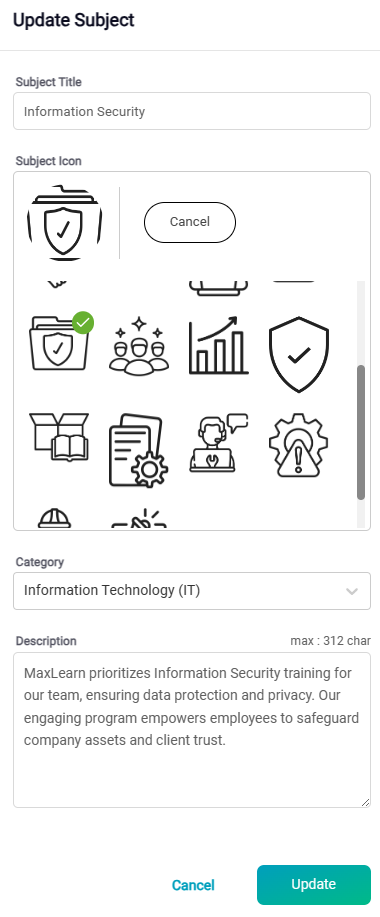
The Update Subject popup appears.
3. Make your desired edits, and click the Update button.
4. Set the category status as PUBLISHED.
Deleting a Subject
1. Select the Subject listing you wish to edit, and select the three-dot menu.
You must delete all content and topics listed under the category before you can delete the listing.
Adding, Editing and Deleting Topic
MaxLearn content is organized by Categories, Subjects, and Topics. Topics are specific and related to a Subject. A topic highlights a single, or closely related concepts, activities, role, policy, or a specific thing, such as a product or product type.
Adding a Topic
2. Click on the +ADD NEW TOPIC button on the top right of the Manage Topic screen.

The ADD NEW CATEGORY popup appears.
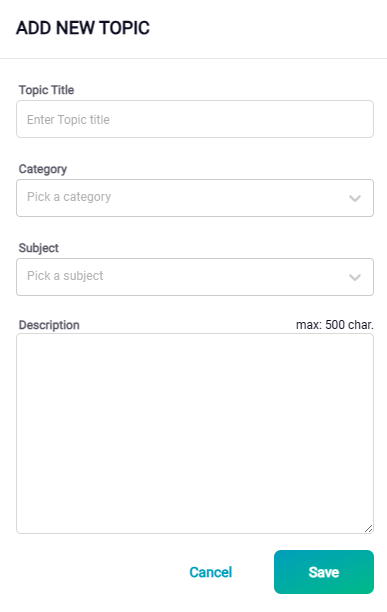
3. Enter Topic Title, for example, Anti-bribery/Anti-Corruption.
4. Select the Category under which the Topic is to appear, for example, Compliance.
5. Select the Subject under which the Topic is to appear, for example, Financial Crimes.
6. Enter a short description of your Topic.
7. Click Save.
After saving the Subject, it will appear in your Subject list as a draft. To make the category available to learners, change its status to Published. Once published, you can add content to the Subject, and learners will be able to access it.
8. Click on the Published setting for the category and select Published.
Editing a Topic
1. Select the Topic listing you wish to edit, and select the three-dot menu.
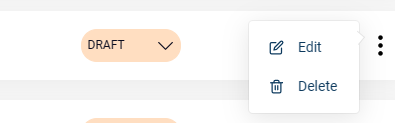
Depending on the length of your topic description, you may have to scroll to the right to see the three-dot menu.
2. Select Edit.
The Update Subject popup appears.
3. Make your desired edits, and click the Update button.
4. Set the category status as PUBLISHED.
Deleting a Topic
1. Select the Topic listing you wish to edit, and select the three-dot menu.
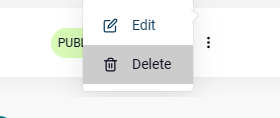

You must delete all content and topics listed under the category before you can delete the listing.
Was this article helpful?
That’s Great!
Thank you for your feedback
Sorry! We couldn't be helpful
Thank you for your feedback
Feedback sent
We appreciate your effort and will try to fix the article