The Content Structure Upload enables users to map out categories, subjects, and topics on an Excel sheet and then upload them to the system. For more information on see Categories, Subjects, and Topics.
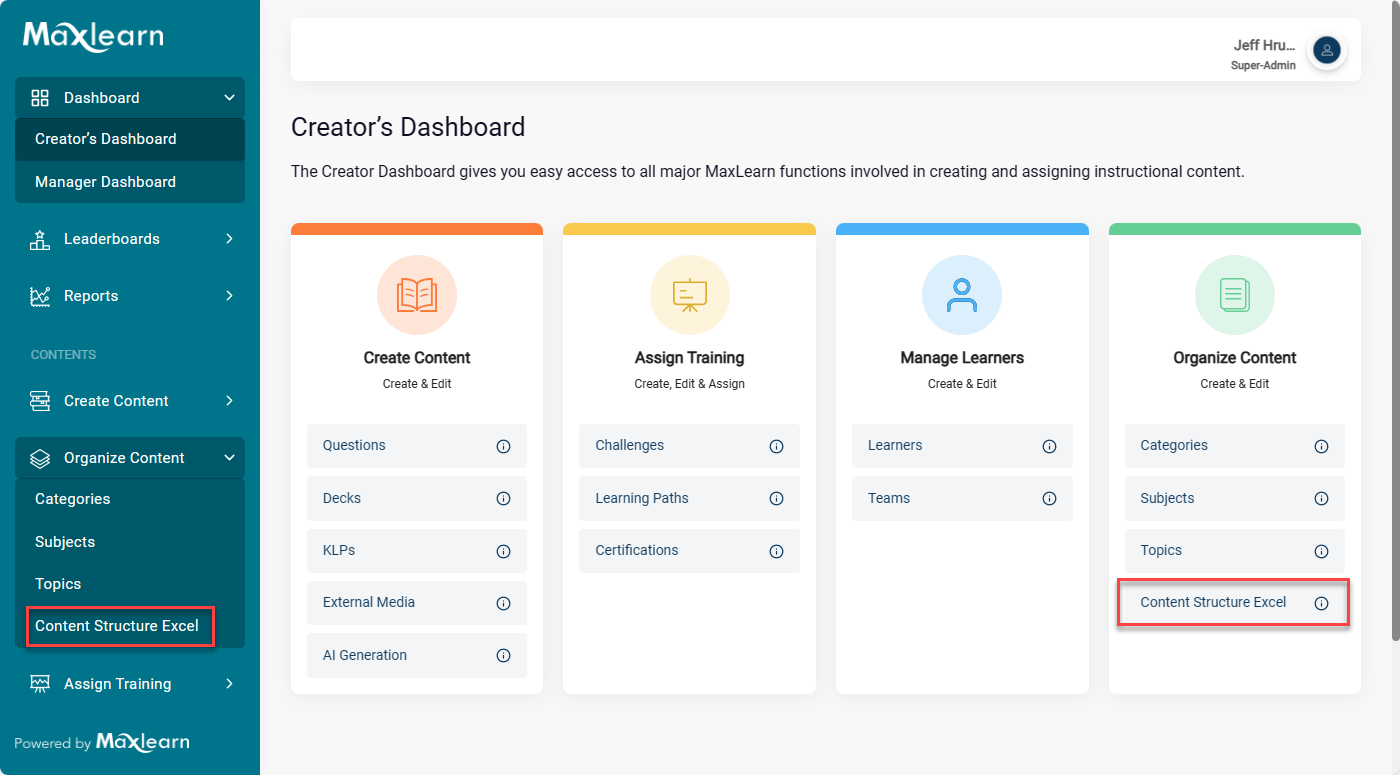
1. From the Creator's Dashboard or the left navigation, click on Content Structure Excel under Organize Content.
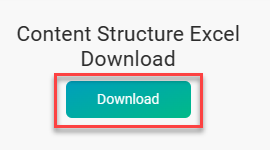
2. Under Content Structure Excel Download click the Download button.
The CST Excel file downloads.
3. Open the cst.xls file and replace the information that is shown with your company's categories, subjects and topics. For information and examples, see Categories, Subjects, and Topics.
4. Save the Excel file under an appropriate file name for your organization and in a location where it can be accessed.


After uploading, you can edit, delete or add additional categories, subjects and topics in MaxLearn.
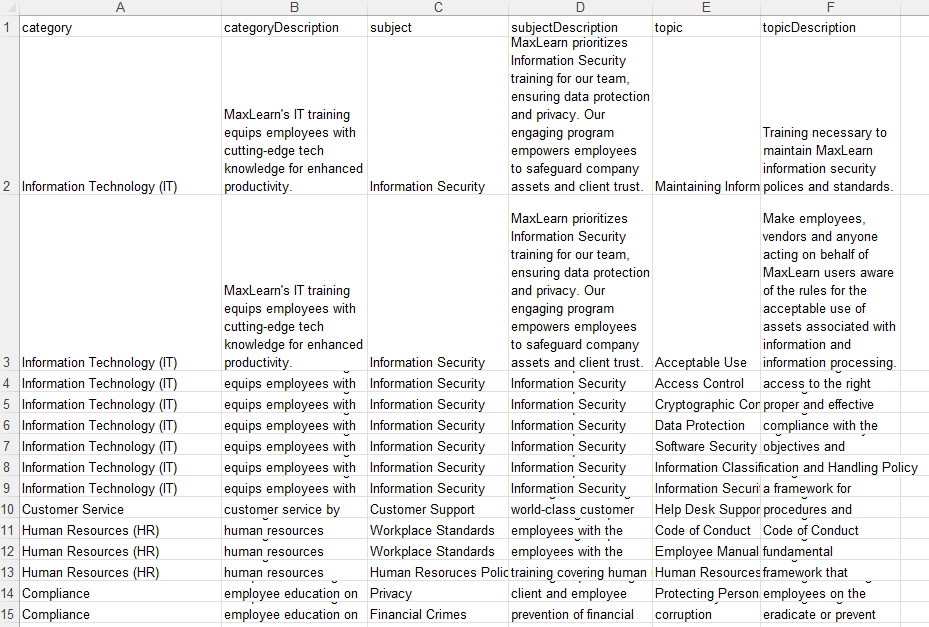
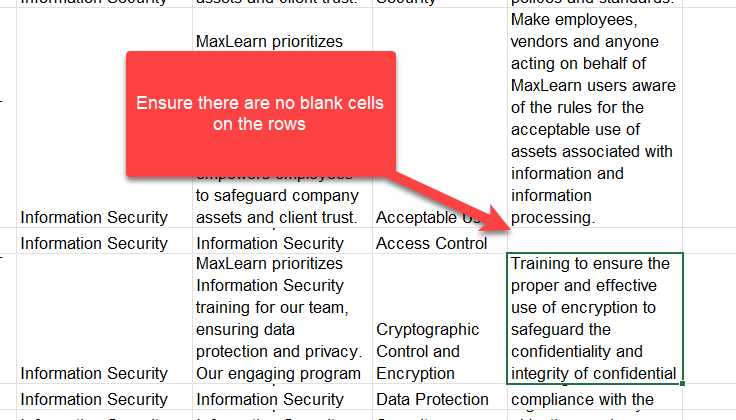
The image displayed above is an example of a content structure spreadsheet. It is important to note that some categories are repeated. Each category may consist of several associated subjects and topics. When the spreadsheet is uploaded, only one listing of the category or subject will be displayed. However, for the purpose of the spreadsheet, each subject and topic should be associated with a category and topic.
5. Once you are satisfied with the spreadsheet, you can proceed to save and close the file.
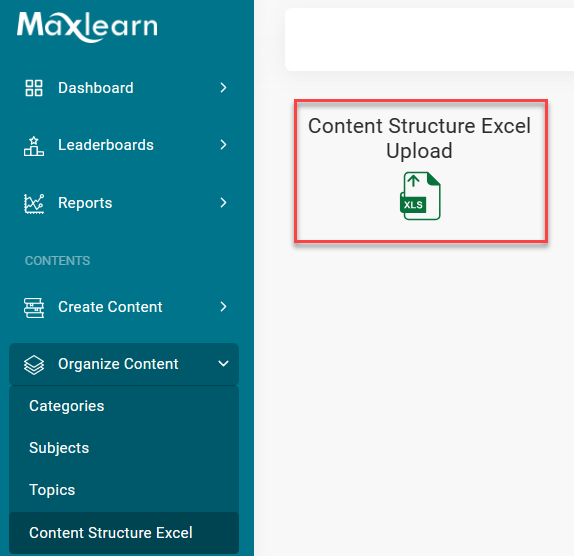
6. Click the Content Structure Excel Upload button and upload your saved file.

Make there are NO BLANK CELLS. A blank cell (for example, a description) will cause an error.
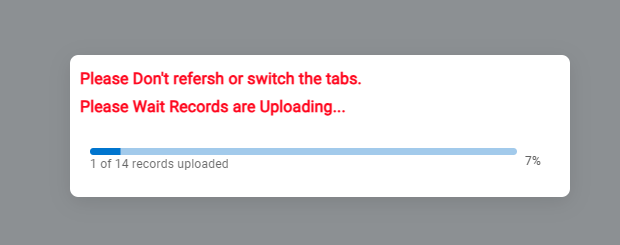
The progress of your upload will be displayed.
7.All uploaded Categories, Subjects and Topics are saved as drafts in MaxLearn. After the file has successfully uploaded, edit, delete or add to your Categories, Subjects and Topics from the Organize Content section.
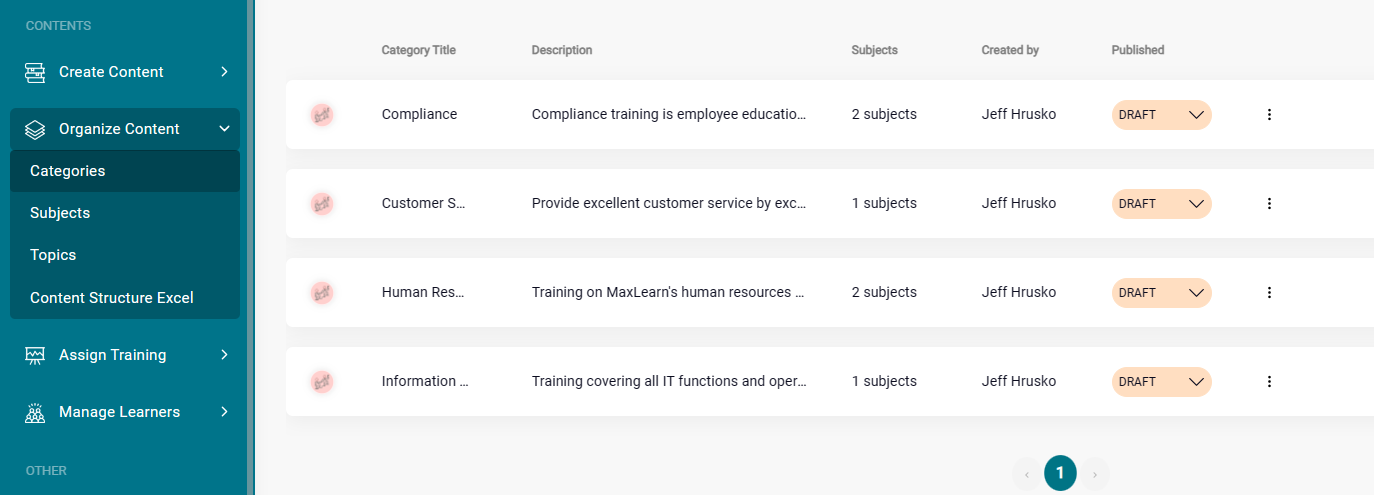
Note the initial draft uploaded via Excel will have a default icon and card color. You should edit these before changing the listing to Published.
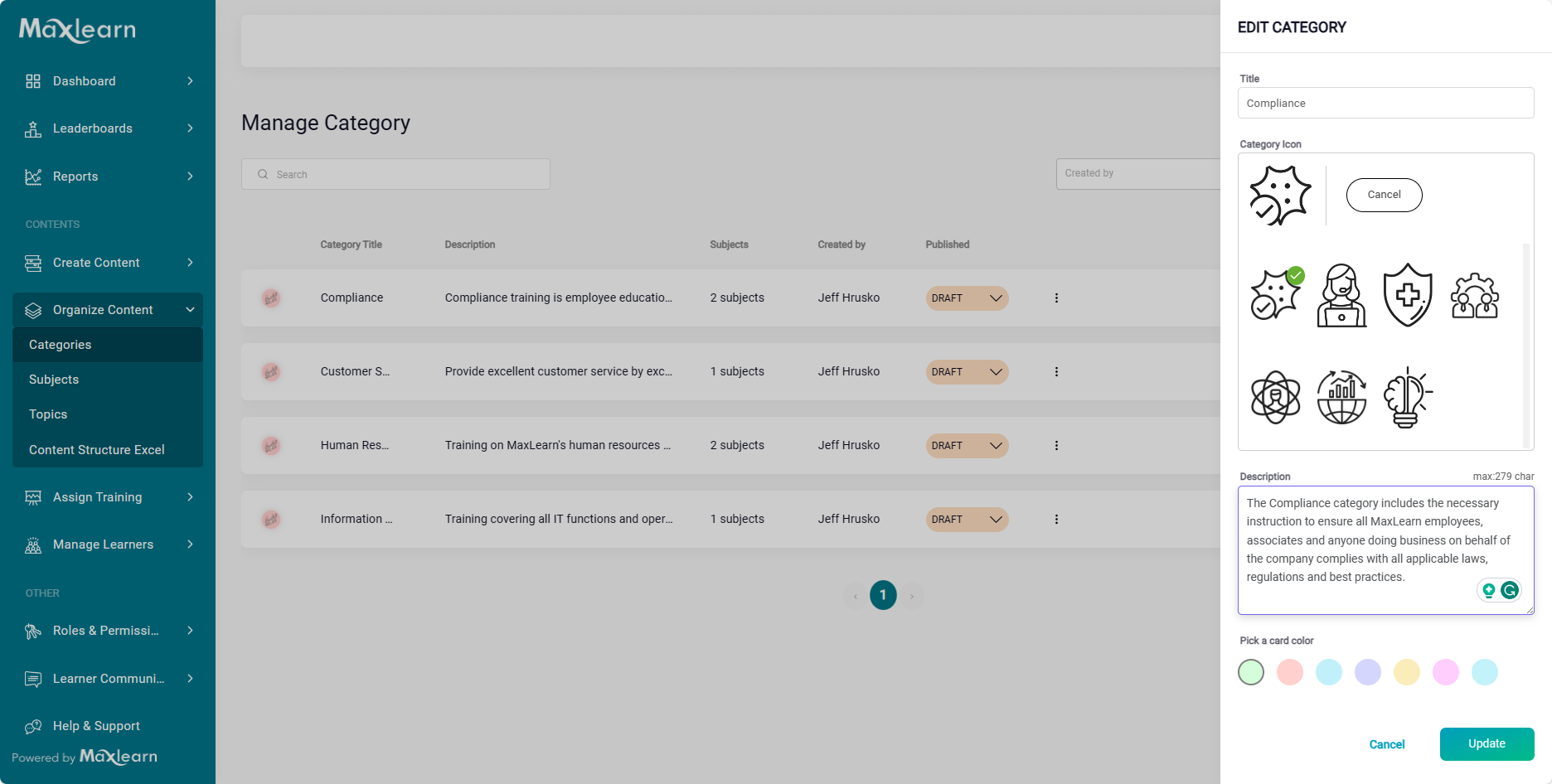
See Adding, Editing and Deleting Categories, Subjects and Topics for more information.
Was this article helpful?
That’s Great!
Thank you for your feedback
Sorry! We couldn't be helpful
Thank you for your feedback
Feedback sent
We appreciate your effort and will try to fix the article